Clearing a browser cache means removing stored copies of website files. It is different from deleting cookies, browsing history or saved passwords. If an Irish public-service form, booking page or other website looks out of date, choosing the smallest relevant option can avoid an unnecessary sign-in and setup job afterwards.
This guide covers desktop Chrome, Edge, Firefox and Safari on a Mac. Menu wording can change between releases, so read the labels on your own screen before confirming a deletion. It does not claim that a cache clear will repair every website problem.
Decide what you want to remove
Cached files help a browser reuse parts of a page instead of downloading everything again. Cookies and other site data can remember a session or preferences. History records where you browsed; saved passwords and autofill are separate categories.
Google’s explanation of Chrome browsing data distinguishes those categories. Before clearing anything, save work and finish or leave a form safely. If you also remove sign-in data, make sure you can sign back in using the service’s normal method.
Do not select every box simply because the page has a problem. Start by deciding whether you want to refresh downloaded files, remove a particular site’s remembered data or erase a history record. Those are different tasks.
Chrome: select cached images and files
On a computer, open Chrome’s three-dot menu and choose Delete browsing data. Choose the time range that fits the problem and inspect the selected categories. For a cache-only clear, select Cached images and files and leave the other categories you want to retain unselected. Confirm with Delete data only after checking the selection.
Google’s linked help describes what each category removes. It also warns that deleting information saved to your Google Account can affect other devices and the account. Do not assume every choice in the dialog is confined to this computer.
Edge: check the categories and sync scope
Microsoft’s Edge instructions lead through Settings and more, Settings, then Privacy, search, and services. Under Clear browsing data, choose what to clear, select a time range and review the list before using Clear now.
Choose Cached images and files for the cache task. Keep cookies, history, passwords and autofill unselected if you intend to retain them. Microsoft distinguishes all of these in its deletion table.
The same help explains the difference between local and synced data. If you mean to remove information only on one device, review the sync instructions first; synced categories can be removed across devices. Clearing Download history removes the list, not the downloaded files themselves.
Firefox: choose temporary cached files and pages
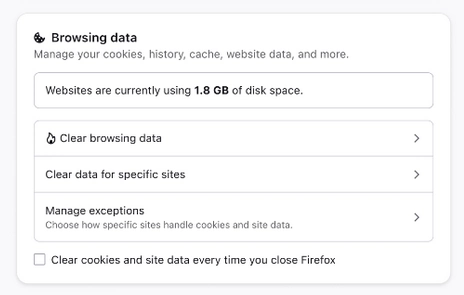
Mozilla’s current Firefox cache guide directs desktop users to Settings, then Privacy and security. In current wording, open Browsing data and Clear browsing data; some versions use Cookies and Site Data and Clear Data.
In the dialog, select the time range and ensure that only Temporary cached files and pages is selected for a cache-only operation. Mozilla’s full-cache instructions choose Everything. Review the other boxes before pressing Clear.
The image above is an actual screenshot supplied in Mozilla’s help page. It shows the Browsing data section and the route to the dialog. The storage amount shown is the example in Mozilla’s picture, not a measurement of your computer or a target amount to remove.
Safari on a Mac: website-data removal has wider effects
Apple’s Safari guide uses Safari, Settings, Privacy, then Manage Website Data. You can select one or more websites and remove their stored data rather than immediately choosing Remove All.
Treat this as website-data removal, not a promise to clear only cached pictures. Apple warns that it may sign you out, change website behaviour and affect data used in other apps. If keeping every session is essential, pause and check the current instructions for your Safari version before proceeding.
What should you check afterwards?
Reopen the affected page and repeat only the step that was failing. If the problem remains, note the browser, the time and the exact error for the website’s support team. Use the service’s own contact route and keep passwords, codes and personal information out of a screenshot you share.
A cache clear does not establish that an outage has ended or that an account problem has been resolved. Repeatedly deleting more categories can add disruption without identifying the cause. The useful result is a deliberate change you can describe, followed by a clear check of the page.
Screenshot: Mozilla Support / Mozilla contributors, from the linked Firefox cache guide, accessed 16 October 2026. Converted to WebP for explanation of the actual interface. Firefox is a trademark of the Mozilla Foundation in the US and other countries; this independent guide does not imply Mozilla endorsement.


Join the conversation
Keep it kind, relevant and constructive. Comments are reviewed before they appear.
Be the first to share a thought.